ASNA Knowledge Base
Technical references, how-tos, and trouble-shooting for ASNA products

Windows PowerShell is 19 years old and it’s very likely you don’t use it. In fact, there is probably a fair number of you reading this that don’t even know what PowerShell is. A few Google searches show that for the vast majority of general Windows users, it is essentially unknown and untouched and it’s probably used only by about 25% of developers. However, perhaps up to 90% of IT professionals and Sysadmins use it.
General Windows users probably don’t need PowerShell so it makes sense that its ignored by that user based. However, the 75% of developers that aren’t using PowerShell are missing tons of power and convenience. If you’re a developer and aren’t using PowerShell, you need to at least learn the basics.
PowerShell is an automation and configuration tool that is optimized for dealing with OS file systems, structured data (e.g. JSON, CSV, XML, etc.), REST APIs, and object models. It includes a command-line shell and a powerful scripting language. A common use case for PowerShell is to find, list, and work with files—but PowerShell shines for many other tasks.
One of the reasons PowerShell developer adoption is so minimal is that PowerShell is just so darned weird and opinionated. It looks and feels like no other programming language (having said that, if you know CL on the IBM, you’ll notice some interesting similarities). Its syntax borders on bizarre; (especially weird operators—you must use -gt, not >); unless you are familiar with Linux command shells, its pipeline (the feature that gives it so much power) and the fact that it is pushing lists of objects around requires a substantial mental shift; and it has a pedantic security focus (which is probably a good thing.)
AI has made Learning PowerShell much easier. It can generate complex scripts quite reliably and document what any complex PowerShell command line is doing. AI is very helpful for learning PowerShell.
Windows 11 comes with the Windows-specific PowerShell 5.1. There is also a cross-platform PowerShell 7 version. It works with Linux, Mac, and Windows. Although MS supports Version 5.1 (i.e., security fixes), otherwise 5.1 is feature-complete and will receive no new features. Once you get a feel for PowerShell with 5.1, you may want to upgrade to PowerShell 7 for its new features. However, for learning and exploring PowerShell, you’ll be just fine with 5.1 for its core facilities.
This article isn’t attempting to teach you PowerShell. Its aim is to make you want to learn PowerShell.
PowerShell can do anything DOS can do, and much, much more. Where DOS has “commands,” PowerShell has “cmdlets.” While PowerShell (PS) is a superset of DOS commands, here is a cross reference of several popular DOS commands and their PS equivalents:
| DOS/CMD Command | PowerShell Cmdlet | Built-in Aliases | Description / Purpose |
|---|---|---|---|
dir | Get-ChildItem | dir, ls, gci | Lists files and folders in a directory. |
cd / chdir | Set-Location | cd, chdir, sl | Changes the current working directory. |
md / mkdir | New-Item | md, mkdir, ni | Creates a new directory or file. |
copy | Copy-Item | copy, cp, ci | Copies items from one location to another. |
move | Move-Item | move, mv, mi | Moves an item to a new location. |
ren / rename | Rename-Item | ren, rni | Renames an existing file or directory. |
del / erase | Remove-Item | del, rm, ri | Deletes files or folders. |
rd / rmdir | Remove-Item | rd, rmdir | Removes an empty or populated directory. |
type | Get-Content | type, cat, gc | Displays contents of a text file. |
At a glance, you may assume that PowerShell is just a DOS alternative syntax with a personality disorder.
The only way to learn PowerShell is to start using it. Follow along on your PC to see the following steps in action. Find and click “PowerShell” from the Windows Start Menu. That opens a Windows Terminal window.
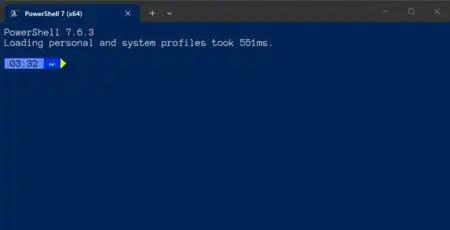
The Windows Terminal is unified interface for shells like Command Prompt, PowerShell, and Windows Subsystem for Linux (WSL). It offers tabs, split-pane navigation, and deep customization. Your Terminal command line won’t look exactly like the one shown—this one is customized with Starship. These customizations are cosmetic and your Terminal will otherwise behave the same as the screen shots you see in this article.
To show PowerShell in action, I’ll change to this folder
C:\Users\thumb\Documents\projects\asna\articles\powershell-articlewith PowerShell’s Set-Location cmdlet. Cmdlets are case-insensitive.
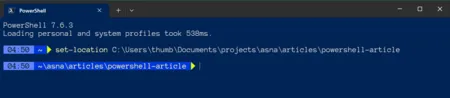
Using Set-Location changed the current directory to the one specified. One of the default PS aliases for Set-Location is cd. So it, or the other two aliases (from table above), would have done the same thing. PowerShell provides those aliases to make PowerShell easier for both DOS and Linux users. The PowerShell alias system is very flexible and you can add your own custom aliases with the Set-Alias cmdlet.
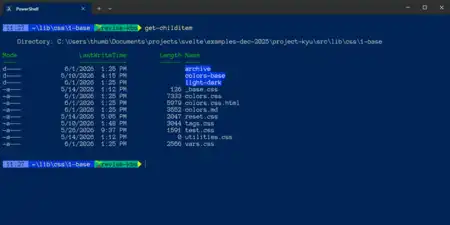
Get-ChildItem is PowerShell’s alternative to the DOS dir command. Get-ChildItem lists directories and folders.
Bonus Terminal tip: Effective with Windows 11 version 25H2, the Terminal has a light-weight text editor built in. From the PS command line, use
edit <file name>to see it in action.
ls is one of PS’s default aliases for Get-ChildItem and using that alias would have produced the same output. (Why ls? Linux and the Mac use the ls command to display files and directories).
At first glance, the output looks very much like DOS and you might wonder, “So what? I can do that with dir.” While the output looks similar, a substantial differences lurks under the covers. dir output is a flat list of text. Your only option for working with dir output is to direct its output to a file and then user brute force to work with that file.
PowerShell provides much more useful output than DOS does. PowerShell cmdlets produce a list of objects that can be sorted and filtered and displayed in many powerful ways. The default output is a flat list of text. But let’s dig deeper.
From a folder full of files, let’s use the ls alias to select only the file name and the file’s last write time, and sort the list by last write time:
ls *.css | sort-object lastwritetime | select-object name, lastwritetimeproduces this list:

There is lots to unpack here. This command line uses PowerShell’s pipe operator (|) to directly pipe the output of one cmdlet into another cmdlet (no intermediate text files are created—this piping occurs in memory). If you have a Linux background, you’ll recognize PowerShell’s piping concept—it works very much like piping in Linux command shells. Breaking down the command line:
| ls *.css                          | Select all Get-ChildItem objects for the CSS files in the directory |
| --------------------------------- | ------------------------------------------------------------------- |
| sort-object lastwritetime         | Sort the objects by their `lastwritetime` property                  |
| select-object name, lastwritetime | Select the `name` and `lastwritetime` properties                    |
Where did the properties name and lastwritetime come from? Most PS cmdlets produce a list of objects. Let’s take a look at the object Get-ChildItem produces with this command line:
Get-ChildItem | Get-MemberShows a list of the object members that Get-ChildItem produces. It is a big list and makes for a very large screen shot. Let output that list to a text file.
Your first thought may be to do this:
Get-ChildItem | Get-Member > members.txtThat produces this file:
TypeName: System.IO.DirectoryInfo

Name                      MemberType     Definition
----                      ----------     ----------
Target                    AliasProperty  Target = LinkTarget
LinkType                  CodeProperty   System.String LinkType{get=GetLinkType;}
Mode                      CodeProperty   System.String Mode{get=Mode;}
ModeWithoutHardLink       CodeProperty   System.String ModeWithoutHardLink{get=ModeWithou…
ResolvedTarget            CodeProperty   System.String ResolvedTarget{get=ResolvedTarget;}
Create                    Method         void Create()
CreateAsSymbolicLink      Method         void CreateAsSymbolicLink(string pathToTarget)
CreateSubdirectory        Method         System.IO.DirectoryInfo CreateSubdirectory(strin…
Delete                    Method         void Delete(), void Delete(bool recursive)
EnumerateDirectories      Method         System.Collections.Generic.IEnumerable[System.IO…
EnumerateFiles            Method         System.Collections.Generic.IEnumerable[System.IO…
EnumerateFileSystemInfos  Method         System.Collections.Generic.IEnumerable[System.IO…
Equals                    Method         bool Equals(System.Object obj)
GetDirectories            Method         System.IO.DirectoryInfo[] GetDirectories(), Syst…
GetFiles                  Method         System.IO.FileInfo[] GetFiles(), System.IO.FileI…
GetFileSystemInfos        Method         System.IO.FileSystemInfo[] GetFileSystemInfos(),…
GetHashCode               Method         int GetHashCode()
GetLifetimeService        Method         System.Object GetLifetimeService()
GetObjectData             Method         void GetObjectData(System.Runtime.Serialization.…
GetType                   Method         type GetType()
InitializeLifetimeService Method         System.Object InitializeLifetimeService()
MoveTo                    Method         void MoveTo(string destDirName)
Refresh                   Method         void Refresh()
ResolveLinkTarget         Method         System.IO.FileSystemInfo ResolveLinkTarget(bool …
ToString                  Method         string ToString()
PSChildName               NoteProperty   string PSChildName=archive
PSDrive                   NoteProperty   PSDriveInfo PSDrive=C
PSIsContainer             NoteProperty   bool PSIsContainer=True
PSParentPath              NoteProperty   string PSParentPath=Microsoft.PowerShell.CoreFi…
PSPath                    NoteProperty   string PSPath=Microsoft.PowerShell.CoreFileSyst…
PSProvider                NoteProperty   ProviderInfo PSProvider=Microsoft.PowerShell.Cor…
Attributes                Property       System.IO.FileAttributes Attributes {get;set;}
CreationTime              Property       datetime CreationTime {get;set;}
CreationTimeUtc           Property       datetime CreationTimeUtc {get;set;}
Exists                    Property       bool Exists {get;}
Extension                 Property       string Extension {get;}
FullName                  Property       string FullName {get;}
LastAccessTime            Property       datetime LastAccessTime {get;set;}
LastAccessTimeUtc         Property       datetime LastAccessTimeUtc {get;set;}
LastWriteTime             Property       datetime LastWriteTime {get;set;}
LastWriteTimeUtc          Property       datetime LastWriteTimeUtc {get;set;}
LinkTarget                Property       string LinkTarget {get;}
Name                      Property       string Name {get;}
Parent                    Property       System.IO.DirectoryInfo Parent {get;}
Root                      Property       System.IO.DirectoryInfo Root {get;}
UnixFileMode              Property       System.IO.UnixFileMode UnixFileMode {get;set;}
BaseName                  ScriptProperty System.Object BaseName {get=$this.Name;}

TypeName: System.IO.FileInfo

Name                      MemberType     Definition
----                      ----------     ----------
Target                    AliasProperty  Target = LinkTarget
LinkType                  CodeProperty   System.String LinkType{get=GetLinkType;}
Mode                      CodeProperty   System.String Mode{get=Mode;}
ModeWithoutHardLink       CodeProperty   System.String ModeWithoutHardLink{get=ModeWithou…
ResolvedTarget            CodeProperty   System.String ResolvedTarget{get=ResolvedTarget;}
AppendText                Method         System.IO.StreamWriter AppendText()
CopyTo                    Method         System.IO.FileInfo CopyTo(string destFileName), …
Create                    Method         System.IO.FileStream Create()
CreateAsSymbolicLink      Method         void CreateAsSymbolicLink(string pathToTarget)
CreateText                Method         System.IO.StreamWriter CreateText()
Decrypt                   Method         void Decrypt()
Delete                    Method         void Delete()
Encrypt                   Method         void Encrypt()
Equals                    Method         bool Equals(System.Object obj)
GetHashCode               Method         int GetHashCode()
GetLifetimeService        Method         System.Object GetLifetimeService()
GetObjectData             Method         void GetObjectData(System.Runtime.Serialization.…
GetType                   Method         type GetType()
InitializeLifetimeService Method         System.Object InitializeLifetimeService()
MoveTo                    Method         void MoveTo(string destFileName), void MoveTo(st…
Open                      Method         System.IO.FileStream Open(System.IO.FileStreamOp…
OpenRead                  Method         System.IO.FileStream OpenRead()
OpenText                  Method         System.IO.StreamReader OpenText()
OpenWrite                 Method         System.IO.FileStream OpenWrite()
Refresh                   Method         void Refresh()
Replace                   Method         System.IO.FileInfo Replace(string destinationFil…
ResolveLinkTarget         Method         System.IO.FileSystemInfo ResolveLinkTarget(bool …
ToString                  Method         string ToString()
PSChildName               NoteProperty   string PSChildName=_base.css
PSDrive                   NoteProperty   PSDriveInfo PSDrive=C
PSIsContainer             NoteProperty   bool PSIsContainer=False
PSParentPath              NoteProperty   string PSParentPath=Microsoft.PowerShell.CoreFi…
PSPath                    NoteProperty   string PSPath=Microsoft.PowerShell.CoreFileSyst…
PSProvider                NoteProperty   ProviderInfo PSProvider=Microsoft.PowerShell.Cor…
Attributes                Property       System.IO.FileAttributes Attributes {get;set;}
CreationTime              Property       datetime CreationTime {get;set;}
CreationTimeUtc           Property       datetime CreationTimeUtc {get;set;}
Directory                 Property       System.IO.DirectoryInfo Directory {get;}
DirectoryName             Property       string DirectoryName {get;}
Exists                    Property       bool Exists {get;}
Extension                 Property       string Extension {get;}
FullName                  Property       string FullName {get;}
IsReadOnly                Property       bool IsReadOnly {get;set;}
LastAccessTime            Property       datetime LastAccessTime {get;set;}
LastAccessTimeUtc         Property       datetime LastAccessTimeUtc {get;set;}
LastWriteTime             Property       datetime LastWriteTime {get;set;}
LastWriteTimeUtc          Property       datetime LastWriteTimeUtc {get;set;}
Length                    Property       long Length {get;}
LinkTarget                Property       string LinkTarget {get;}
Name                      Property       string Name {get;}
UnixFileMode              Property       System.IO.UnixFileMode UnixFileMode {get;set;}
BaseName                  ScriptProperty System.Object BaseName {get=if ($this.Extension.…
VersionInfo               ScriptProperty System.Object VersionInfo {get=[System.Diagnosti…
That works, but the lines are truncated. We’ll deal with the list truncation in a moment, but first lets get a sense of what PS’s Get-ChildItem is doing. It produces a list System.IO.DirectoryInfo .NET Framework objects for the directories and list of the System.IO.FileInfo .NET Framework objects for the files found. Every one of those members, (even the methods), are available for you to use.
Think about how much work PS just did with the .NET Framework with that one little cmdlet. For a rough comparison of the effort required, see this GitHub gist to see the 55 lines of ASNA Visual RPG code it takes to do roughly the same thing. PowerShell and its cmdlets pack a ton of power.
To deal with the truncated lines, let’s use another PS cmdlet.
get-childitem | get-member | out-file -width 500 member.lstThe out-file cmdlet produces a text file with PowerShell output. By default its line length defaults to 128, so the -width argument, with a value of 500, ensures the lines aren’t truncated.
But wait, there’s more. Would you like that list in Excel?
get-childitem | get-member | export-csv member.csvthen open the CSV with Excel.
Adventurous and want to skip the CSV import with Excel?
Install the free (and poorly named) ImportExcel module
Install-Module -Name ImportExcel -RequiredVersion 7.8.6and write the PS output directly to Excel with:
get-childitem | get-member | export-excel -path 'members.xlsx' -worksheetname 'members' -autosizeSee the PowerShell gallery for many other PowerShell modules and scripts. Many of the modules are free, but some are commercial.
How about JSON?
get-childitem | get-member | convertto-json | out-file member.jsonHow about an interactive display with query capability?
get-childitem | get-member | out-gridview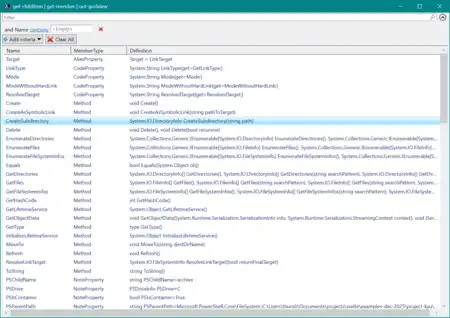
Some of the command line usage in the examples that follow is on multiple lines to make it easier to read. Use the full, single command line when using the command in the Windows Terminal.
Some of these examples use PowerShell concepts not discussed in this article and will raise a few questions (query syntax and potential security settings, for example). Look up the various features used in the PowerShell documentation, or take the lazy (but very effective) way out and copy the command line to your favorite AI tool and ask for an explanation.
Learn about PowerShell with PowerShell
The Get-Help cmdlet prints out a usage guide for any PowerShell cmdlet. For example
get-help ls
get-help get-childitem
either of those command lines shows the syntax for using Get-ChildItem.
Show Windows environment variables
PowerShell implicitly mounts some Windows data stores as a file system. This example lists all Windows environment variables. Note the user of env: as though it were a drive specifier.
ls env:Find project files
A customer was upgrading an AVR Classic 4x application to AVR Classic 5.2. This application used about 50 (!) AVR DLLS that she had created—each of which were nested within various directories inside a top-level directory. Insisting she had recompiled all of the AVR DLLs to 5.2, her top-level application failed to find three of them.
This PowerShell query quickly showed the DLLs that she had forgotten to compile.
ls *.dll -recurse | Sort-Object LastWriteTime | Select-Object Name, LastWriteTime, directorynameNote the
-recurseflag in the command line above. That causesget-childitemto recurse through all subdirectories. It is toget-childitem/lsas the/sflag is to DOS’sdircommand.
The top three DLLs hadn’t yet been recompiled.

Document project files
Coupled with the ability to create Excel spreadsheets from PowerShell output, running this PowerShell command line creates an Excel spreadsheet with a complete project file inventory.
get-childitem -recurse |
          sort-object name | select-object name, lastwritetime, directoryname |
          export-excel -path 'project-ky.xlsx' -worksheetname 'members' -autosize
Show software installed per the registry
This command saves two paths as a list in memory in the Terminal and names it $Paths. Like querying Windows environment variables, note how the registry is implicitly mounted as drive HKLM:
$Paths = @(
    "HKLM:SoftwareMicrosoftWindowsCurrentVersionUninstall*",
    "HKLM:SoftwareWow6432NodeMicrosoftWindowsCurrentVersionUninstall*"
)
Run this command line to see the list of software installed:
Get-ItemProperty -Path $Paths |
    Where-Object { $_.DisplayName } |
    Select-Object DisplayName, DisplayVersion, Publisher |
    Sort-Object DisplayName |
    Format-Table -AutoSize
Here’s the list of installed software on your PC:
DisplayName
-----------
7-Zip 26.01 (x64)
ASNA DataGate Component Suite 17.0 Help
ASNA DataGate Monitor 17.1
ASNA DataGate Print File Designer 17.0 Help
ASNA DataGate Server 17.1
ASNA DataGate Studio 17.0 Help
ASNA DataGate Studio 17.1
ASNA Framework 17.1
ASNA Monarch Framework 11.0 Help
ASNA Monarch Runtime 11.1
ASNA Print Controls 17.1
ASNA Services 2.2
ASNA Visual RPG 5.2
ASNA Visual RPG Classic 5.2
ASNA Visual RPG Compiler 17.1
ASNA Visual RPG for .NET 17.0 Help
ASNA Visual RPG for .NET 17.1
ASNA Visual RPG IDE 17.1
ASNA Visual RPG Runtime 5.2
ASNA Wings 11.0 Help
ASNA Wings Design Aid 11.1
ASNA Wings Design Aid 11.1
Aspire.Hosting.Sdk (x64)
Aspire.ProjectTemplates (x64)
Bonjour
...
Back up SQL Server databases
Backing up SQL Server with PowerShell, you need the free SQL Server PowerShell module. In this example, after the backups are created in the default SQL Server location, the backup files are copied to a folder in my documents folder so that a daily backup process backs them up.
get-sqldatabase -serverinstance DESKTOP-FT1088C  |
                 where { $_.Name \-ne \'tempdb\' } |
                 backup-sqldatabase
copy-item "C:\Program Files\Microsoft SQL Server\MSSQL16.MSSQLSERVER\MSSQL\Backup\*.bak"
           -destination "c:\users\thumb\documents\sql-server-backup"
Test network connections
If you don’t do anything else with PowerShell, see this article for a very effective way to test both IP address and port network access. You’ll never have to fiddle with Telnet and its ambiguous test results to check IP ports.
This article hardly scratches the surface of what PowerShell can do. If you are a developer or network admin, you owe it to yourself to learn PowerShell. It is a very powerful tool in your programming/network kitbox.
Because PS has been around for so long, there are tons of resources, some of which may seem very old. However, for everyday, bread-and-butter PowerShell use, not much has changed since PS’s introduction. Don’t dismiss PS content because it seems to have lived beyond its shelf life.