ASNA Knowledge Base
Technical references, how-tos, and trouble-shooting for ASNA products

When developing a Web application, there are times when it is convenient to be able to share that application on the Internet (with HTTPS active). Some of the reasons to do this are:
CloudFlare, a large Internet infrastructure and security company, has a superb developer utility called cloudflared “quick tunnels” that very easily exposes a localhost port, with a secure HTTPS connection, on the Internet. A quick tunnel launches a process that generates a random subdomain on trycloudflare.com. Requests to that subdomain will be proxied through the Cloudflare network to your web server running on localhost.
Quick tunnels do not require a Cloudflare account or product registration. They are for testing/developer purposes only and have a 200 concurent request limit. Cloudflare has other commercial products that provide more robust, persistent tunneling support. For adhoc testing and demoing, quick tunnels do a great job.
To get started with quick tunnels, download and install the cloudflared executable on Windows.
After installing the binary, it’s a snap to use a quick tunnel.
Step 1.
Open a Visual RPG ASP.NET Web application in Visual Studio and press F5 to run it locally. Take note of the port used.
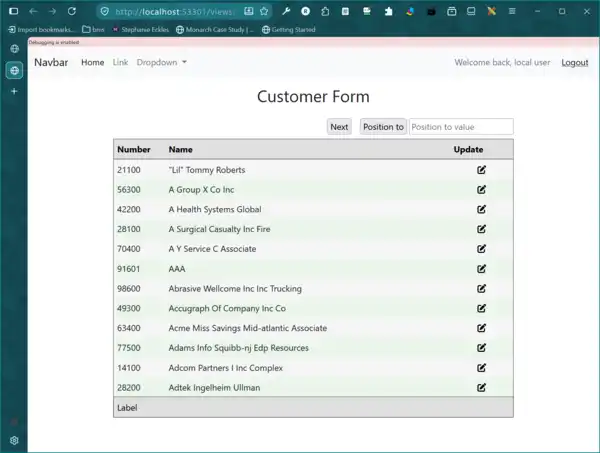
For this test app, the URL is:
http://localhost:53301/views/customer-list.aspxStep 2.
Open a DOS cmd prompt or the Windows Terminal. Navigate to your Web app’s the root directory. Use the following command line to launch a quick tunnel (being sure to use your app’s port number):
cloudflared tunnel --url http://localhost:53301 --http-host-header localhostNote the
--http-host-headerargument and its valuelocalhost. While quick tunnels work without that argument, IIS Express requires that arguement because it injects a neededhostheader.
When you start a quick tunnel, a bunch of gobbledy goop as shown below is displayed:
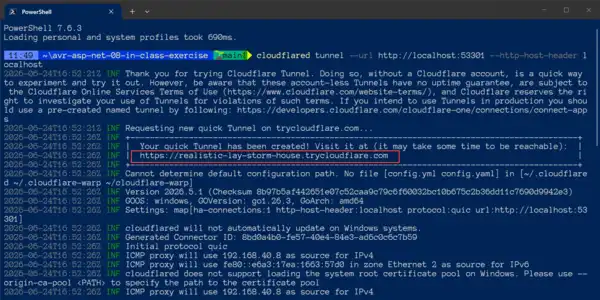
Buried in the middle of that sea of text is the public URL of your application, show in the red box above. In this example, that URL is:
https://realistic-lay-storm-house.trycloudflare.comThis URL varies every time you start a quick tunnel and it is only available while the current quick tunnel session running. To see your ASP.NET application with this URL, be sure to append the full path to your application. For example, running under localhost, the full path of this example application is:
http://localhost:53301/views/customer-list.aspxTo display this app with the quick tunnel URL, append /views/customer-list.aspx to the quick tunnel base URL:
https://realistic-lay-storm-house.trycloudflare.com/views/customer-list.aspxPut that full URL in your browser to see your app pubicly available—and running under HTTPS.
For something a little more magical, put the full URL in your phone’s browser:
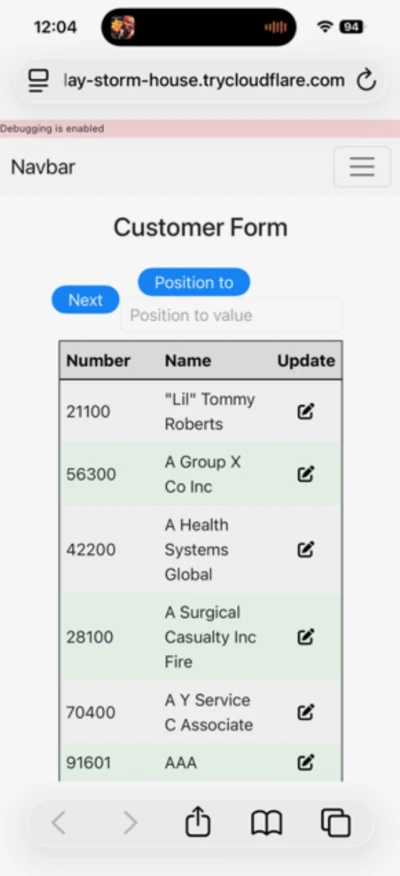
Full discloser: This is indeed an example of how to not make a good responsive grid for mobile use!
It is really annoying to need to type that full URL into your phone’s browser. To avoid that, create a QR code out of your full URL and then scan that code. Works great.